Top Vidrush alternatives
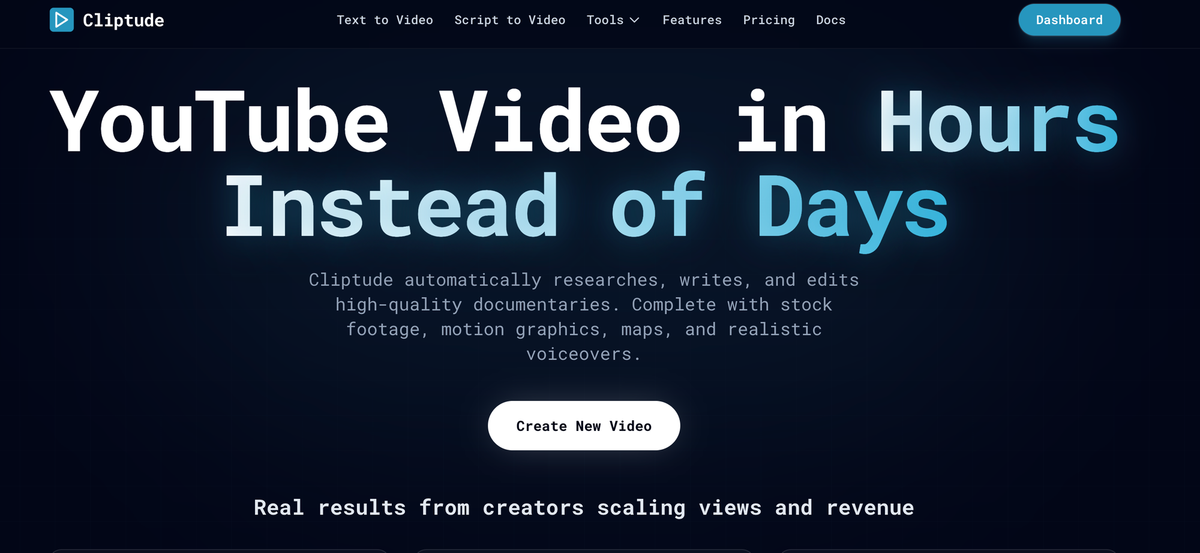
Looking for a Vidrush alternative? This breakdown covers the top AI video tools available right now, with a close look at Cliptude, a tool that matches Vidrush's automated pipeline and adds seven video formats, talking head support, voiceover upload, and over 20 animation types on top of it.

Why Cliptude beats Vidrush for creators who want more than a single prompt-to-video workflow
I spent about three hours last week going down a rabbit hole comparing AI video tools, and what I found was genuinely surprising. Most articles about Vidrush alternatives feel like they were written by someone who spent five minutes on each tool's homepage and called it a day. So I decided to do the actual work and dig into each one myself.
Vidrush has been making a lot of noise lately. The pitch is clean: give it a topic, wait about 50 minutes, and get back a polished long-form video. It handles the research, writes the script, generates a voiceover, finds footage, and edits everything together. For creators running faceless YouTube channels, that kind of automation is attractive. But Vidrush isn't the only tool doing this. And depending on what you actually need, it might not even be the best fit for you.
What makes a good Vidrush alternative?
Before getting into the tools, it helps to think about what you're actually looking for. Vidrush is built for one specific workflow: you type a prompt, approve a script, and get a video. That works well for certain creators. But if you want more control over how your video looks, or if you've already recorded your own voice and don't want a synthetic replacement, or if you film yourself and want a tool that works with your footage, Vidrush starts to show its limits pretty quickly.
A real alternative needs to match Vidrush's core promise (automated video production from scratch) while also giving you something Vidrush doesn't. That could be more animation styles, more video formats, the ability to upload your own audio, or just a more polished final product. With that in mind, here's what's actually worth your time.
Cliptude: the strongest alternative right now
I personally think Cliptude is the most underrated tool in this space, and I'm not saying that lightly. I've been testing AI video tools for a while now, and Cliptude is the one that keeps surprising me with how much it can actually do.
The starting point is familiar. You write a prompt, and Cliptude's AI (powered by Claude and OpenAI) writes the script, splits it into scenes, generates a voiceover using ElevenLabs voices, sources footage, adds animations, and assembles the final video. The whole thing runs as an automated background job, so you're not sitting there clicking through a step-by-step process.
Seven video formats to choose from
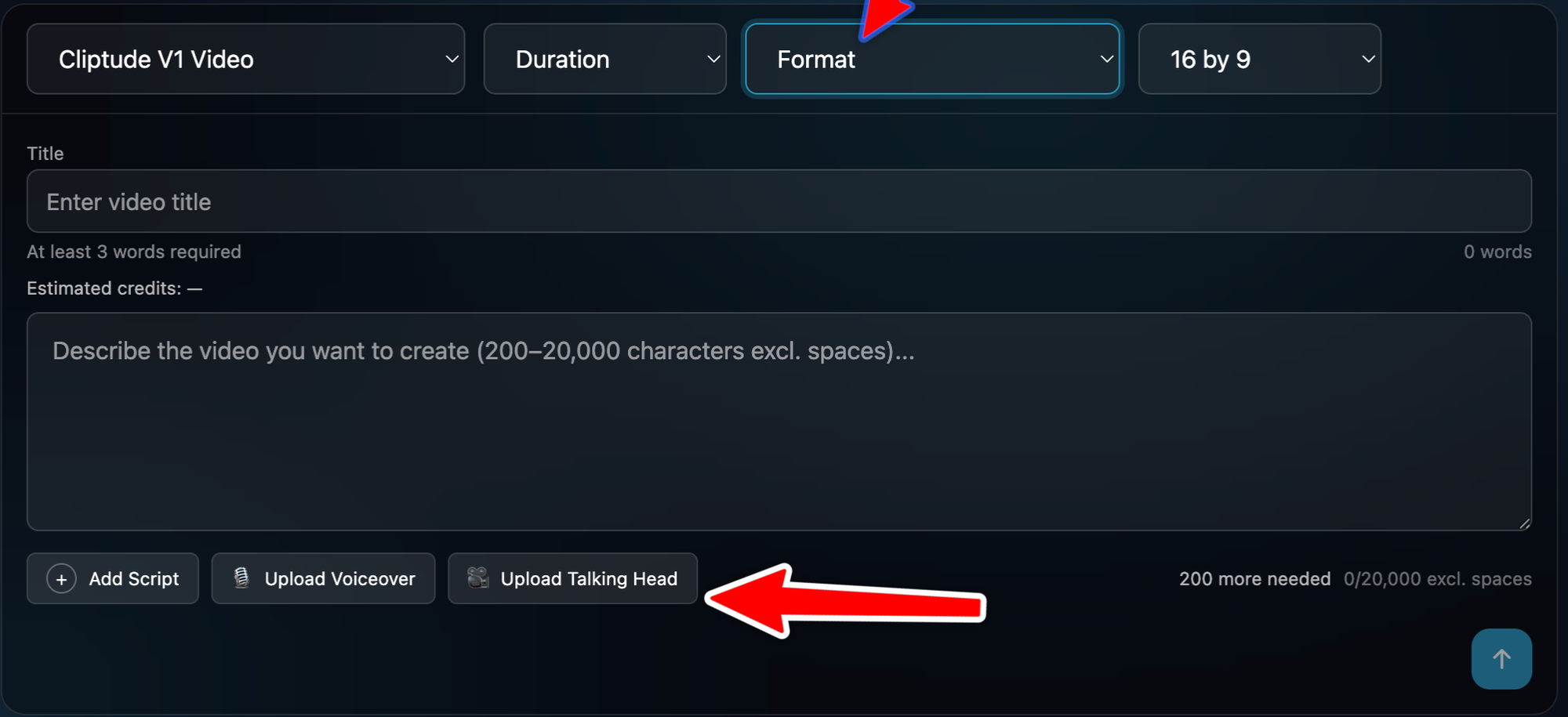
But here's where it gets interesting. Cliptude doesn't just do one type of video. You can pick from a documentary format (with either original A-Roll footage or stock B-Roll), a top-10 style video (same A-Roll or B-Roll choice), an image slideshow, a talking head format, or the Cliptude 3D format for users on that access tier. That's seven distinct formats in total, which is more than most tools in this category offer.
Video length options that actually cover long-form
The duration options are worth paying attention to. You can generate videos as short as one to two minutes or go all the way up to 30 to 40 minutes. There are also options for two to four minutes, six to eight minutes, ten to twelve minutes, and eighteen to twenty minutes in between. A lot of tools in this space cap you at 10 or 15 minutes, which is fine for short-form content but not great if you're building a channel around long educational videos.
Three ways to create a video, not just one
This is the detail that I think people miss most when they compare Cliptude to Vidrush. Vidrush has one creation mode: you give it a prompt, and it builds everything from scratch. Cliptude gives you three options.
Prompt-based creation
The first is the standard prompt-based flow, same as Vidrush. You describe what you want, the AI writes the script, and the pipeline takes over from there. The prompt can be anywhere from 200 to 20,000 characters, which means you can give it a single sentence or a full detailed brief. The script gets generated, scenes get segmented, and the whole pipeline runs without you needing to touch anything else.
Voiceover upload
The second mode is voiceover upload. If you've already recorded your own narration, you can upload it in formats like MP3, WAV, M4A, WEBM, OGG, or FLAC (up to 200 MB and 30 minutes long), and Cliptude transcribe it, match it to scenes, and source footage and animations to fit your actual words. This is a big deal for creators who have spent years building a voice their audience recognises and don't want to swap it out for a synthetic one.
Talking head
The third mode is where it really gets fun. You film yourself, upload the video in MP4, MOV, WEBM, or AVI format (up to 500 MB), and Cliptude extracts your audio, transcribes it, and builds a polished video around your footage. It handles scene changes, adds B-Roll around your talking segments, and applies effects on a scene-by-scene basis. That's not something Vidrush does at all as of this research time, and for creators who film themselves, it fills a real gap.
Talking head display modes
What's clever here is that not every scene in a talking head video has to look the same. Cliptude lets you mix display modes across scenes. Full screen keeps your face front and centre. Split screen puts you on the left or right with B-Roll on the other side. Picture-in-picture drops your face into a corner over B-Roll footage. Snap zoom does a punch zoom on the cut for an energetic feel. And Grayscale mode applies a black-and-white vignette effect to specific scenes for contrast or dramatic moments. You can also swap your face out entirely for a chart or animation scene when the data calls for it.
The animation library is genuinely impressive
One thing I spent a lot of time on was the animation system. Cliptude uses a video rendering engine, to generate animated scenes. The library it has built on top of that is genuinely deep.
Map and geography animations
You get flight path maps that draw an animated arc from one city to another, and country or city highlight maps that put a spotlight on any location in the world. These work really well for history channels, travel content, geopolitics, anything where geography is part of the story.
Data and number animations
Animated counters count up to a value in real time. Timeline animations lay out a sequence of events. These are the kinds of visuals that used to require a motion designer to pull off, and here they're just dropping in automatically based on context.
Text and typography animations
Kinetic typography, text highlight, quote overlays, and impact text all give you ways to make the words on screen more interesting than a simple caption. The difference between a flat subtitle and a kinetic typography scene is noticeable, and it's the kind of thing viewers clock even if they never consciously think about it.
Infographic and diagram animations
Mind maps, split animations, pillar charts, folder click animations, and journey maps all live in this category. These are particularly useful for educational content where you want to show a process, a comparison, or a breakdown without reaching for a screen recording or a static image.
Overlay animations
Overlays sit on top of footage rather than replacing it. Price drop graphics, side tips, hidden reveal, vertical bar, stacked list, lower thirds, and B-Roll text overlays all fall here. The lower third is the name-and-title bar you see in interview-style content. The B-Roll text overlay has multiple subtitle styles including bottom-left, clean white, and others. The subscribe animation is also in this group, which is one of those small touches that channels running long-form content tend to appreciate.
Grayscale impact
This one deserves its own mention. The grayscale impact animation drops a scene into black and white with a vignette effect. It sounds simple but it works surprisingly well for before/after moments or for giving a dramatic beat some visual weight. I counted over 20 distinct animation types across the full library, and that number keeps growing.
Scene types and content sourcing
How scenes are structured
Cliptude splits a video into three types of scenes. Voiceover scenes pair narration with B-Roll footage. A-Roll scenes use original footage as the primary visual. Chart scenes replace footage entirely with an animated data chart, which Cliptude can generate from a data prompt including a source citation.
Where the footage comes from
For B-Roll and A-Roll, Cliptude searches and downloads online footage using per-scene search queries. For image slideshow format, it pulls from the web. It also has a news screenshot system that uses browser automation to grab real news article screenshots, which is useful for current events content. AI-generated video clips via VEO or Sora are also supported as a source type for scenes.
Voice and audio options
AI voiceover with ElevenLabs
When you don't upload your own audio, Cliptude generates the voiceover using ElevenLabs text-to-speech. You can pick from available voice IDs, so the synthetic voice you get isn't just a random default.
Background music and sound effects
Every video gets a background music track mixed in at a controlled volume. Sound effects are also supported and can be toggled on or off. When on, Cliptude adds contextual sound effects at specific moments in the video. This is the kind of audio layering that most fully-automated tools skip entirely.
Aspect ratios and output quality
Cliptude supports 16:9 (standard widescreen for YouTube) and 9:16 (vertical for Shorts and Reels). Both output at full quality. This matters more than it might seem, because a lot of creators run content across multiple platforms and having to send a finished video through a separate tool just to reformat it is an annoying extra step you don't need.
Output formats and export
The output is an MP4 file hosted on Cloudflare R2, so you get a download link once the video is done. You can also export the full Remotion project as a ZIP if you want to do further edits in a code environment.
AI-generated thumbnails
Three AI-generated thumbnail options come with every video, which you can pick from without needing a separate design tool. You can also provide a reference thumbnail URL if you want the generated options to match a style you already use.
Credit-based pricing
Cliptude runs on a credit system. Generation costs roughly 55 credits per minute of video, and the credit check happens before the job starts, so you won't get surprised by a charge after a 40-minute video finishes rendering. Credits are tracked with a full transaction ledger, and the payment integration runs through LemonSqueezy.
A few other tools worth knowing about
A lot of you messaged me after my article on running faceless YouTube channels with AI tools, asking what else is in this space. Fair question. Here's a quick honest look at a few others.
Pictory works well if you already have written content and want to turn it into a video. It's more of a text-to-video tool than a full production pipeline, but it's stable and has been around long enough to have the rough edges smoothed out. It doesn't generate scripts from a prompt or source footage the way Cliptude does.
InVideo AI has improved a lot over the past year and handles short to medium-length content pretty well. It's a good starting point if you're new to AI video tools and want something easy to pick up. The customisation options are solid.
HeyGen and Synthesia are both strong if you want avatar-based videos or need to translate content into other languages with lip sync. They're built for a slightly different use case (corporate training, multilingual content) but are worth knowing about if that's part of what you produce.
So which one should you actually use?
If you're looking for the closest thing to a Vidrush replacement that also does more, Cliptude is the answer. The prompt-based flow is solid, the output quality is strong, and the extra creation modes give you flexibility that Vidrush simply doesn't have.
If you already have your own voice and just need a tool to build good-looking videos around it, Cliptude's voiceover upload mode is the best version of that feature I've seen. You record the audio, upload it, and get back a fully produced video built around your words. No synthetic voices, no compromises.
If you film yourself and want to take that footage further without spending hours in a standard editor, the talking head mode is worth your time. The credit-based pricing means you know what you're spending before you start, with no surprises at the end.
The real question this space is forcing creators to ask is: do you want a tool that does everything for you, or a tool that works with what you already bring? There's a big difference between the two. Drop your answer in the comments. I'm genuinely curious how many of you are still doing any part of this process manually, and what you'd be willing to hand off to a tool like this if you knew the quality would hold up.
Go try it now for free at https://cliptude.com/.